

Installation & Setup Guide
🔧 1. Install the Shipi Plugin
- Go to WordPress Dashboard > Plugins > Add New.
- Search for
Shipi. - Click Install Now, then Activate.
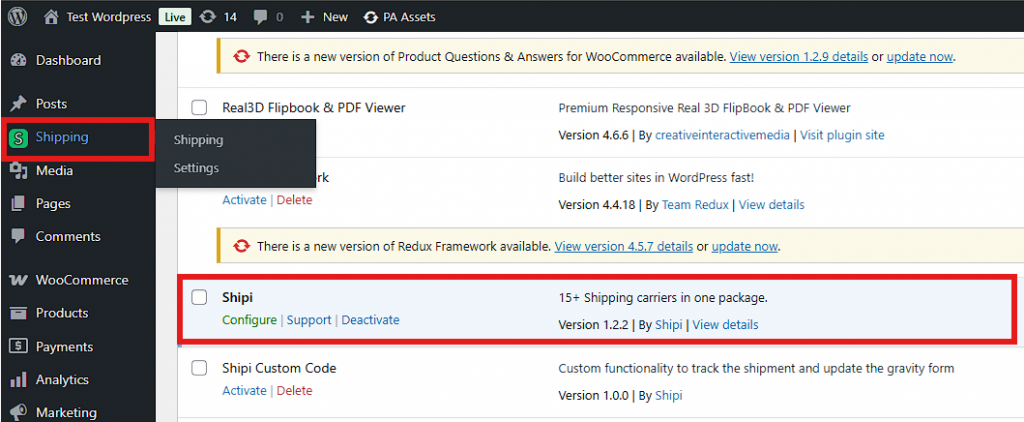
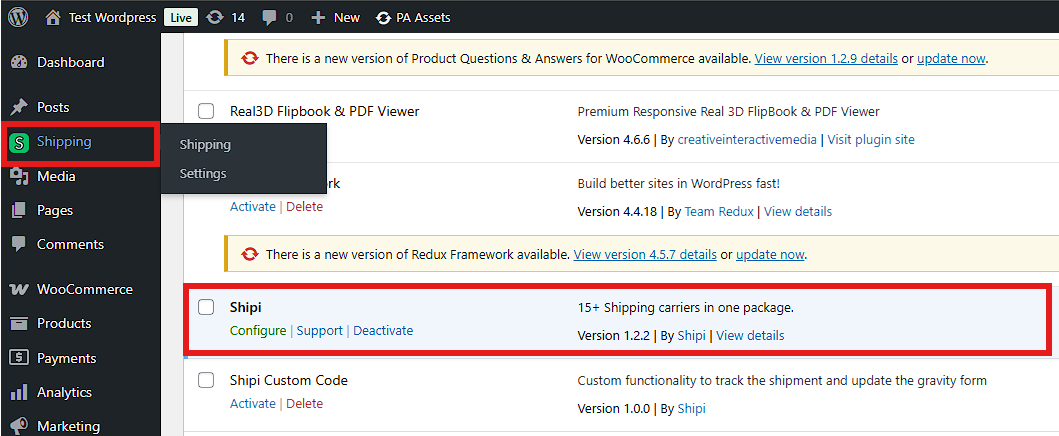
- You’ll see “Shipi” under your Shipping menu.
🔐 2. Connect or Create a Shipi Account
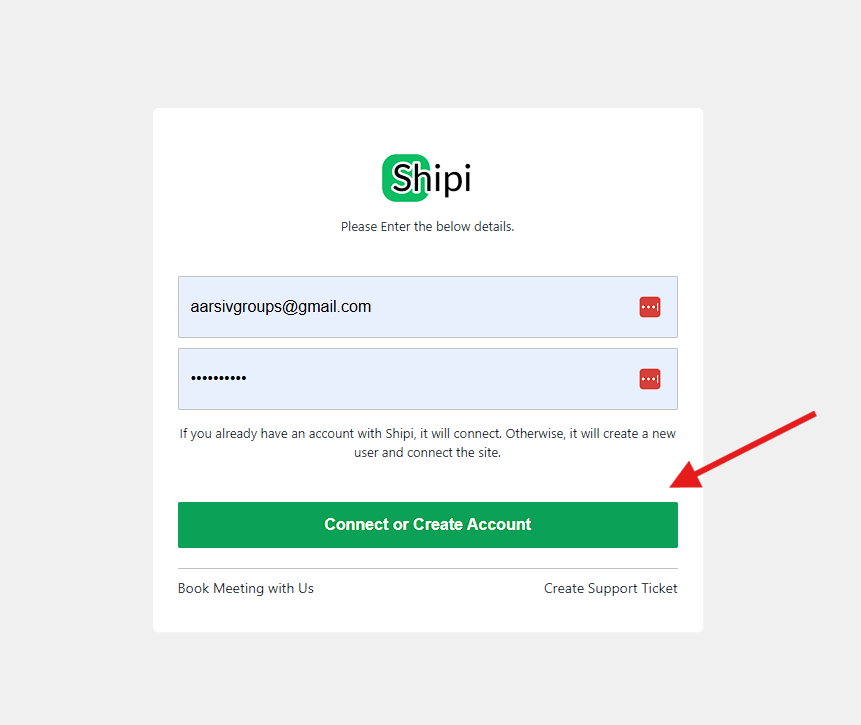
- Navigate to Shipping > Shipi > Configure.
- A login screen appears.
- If you already have a Shipi account, enter credentials and click Connect or Create Account.
- If not, enter your details and a new account will be created automatically.
📦 3. Add Shipping Carrier Accounts
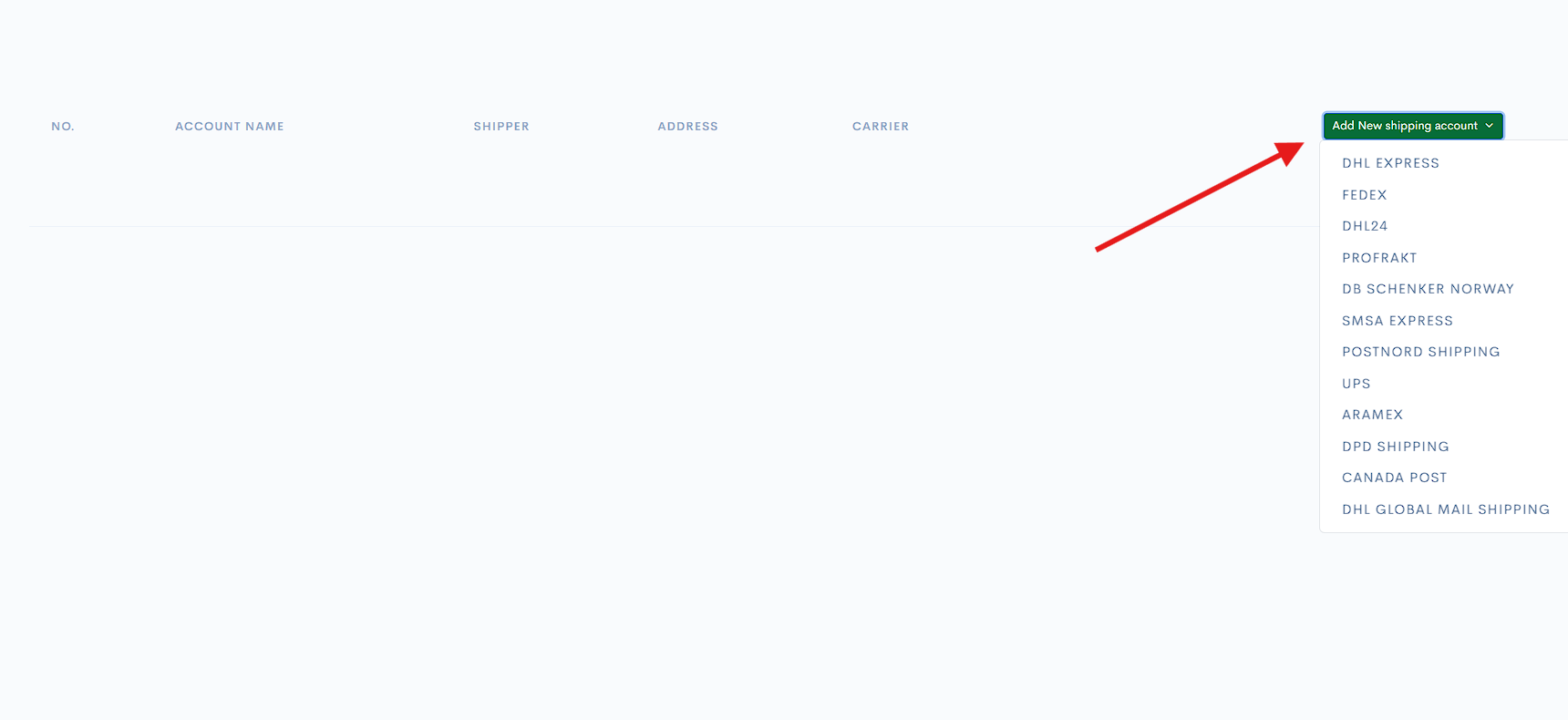
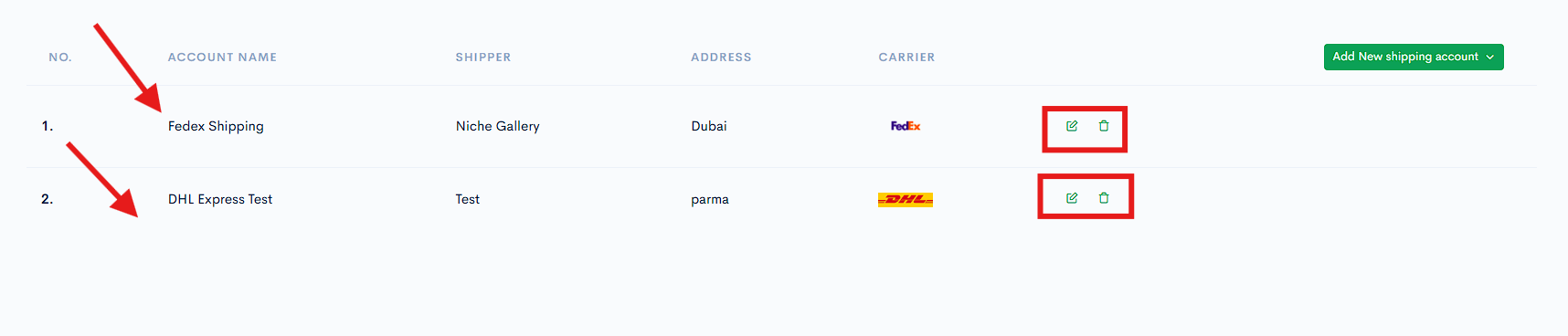
- After logging in, click Add New Shipping Account.
- Choose from 15+ carriers like FedEx, DHL, UPS, Aramex, etc.
- Enter the necessary API credentials and address information.
- Once added, the carriers will appear in your account list.
| Carrier | Configuration Link | | — | — | | DHL Express | – | | FedEx | – |
🌍 4. Configure WooCommerce Shipping Zones
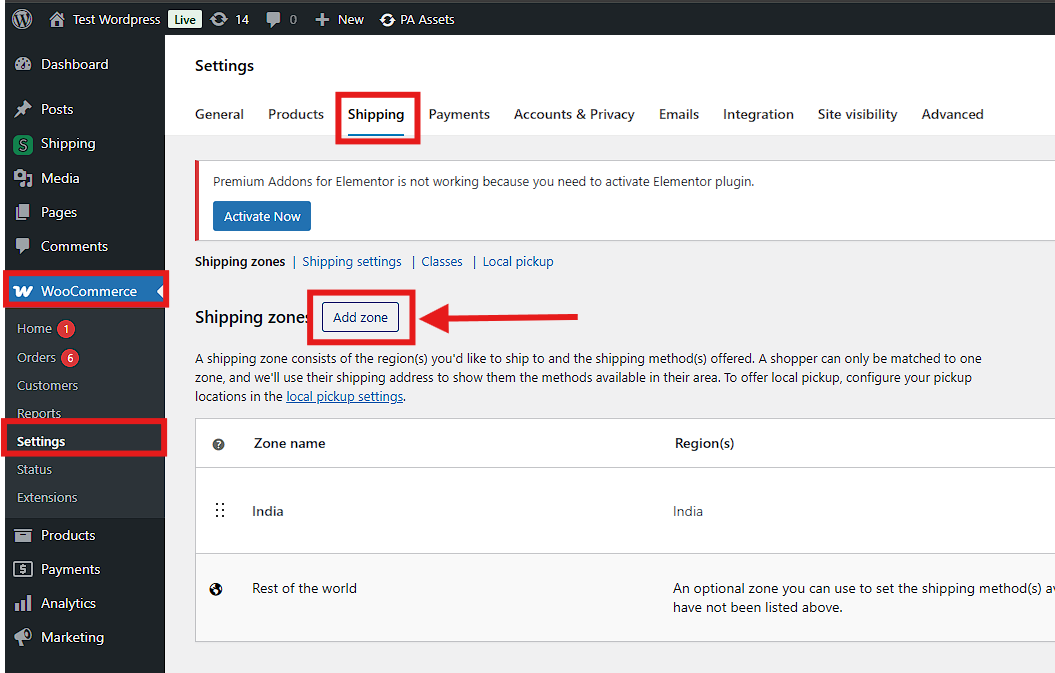
- Go to WooCommerce > Settings > Shipping.
- Click Add Zone and enter region-specific details.
- Click Add Shipping Method.
🚀 5. Add Shipi as a Shipping Method
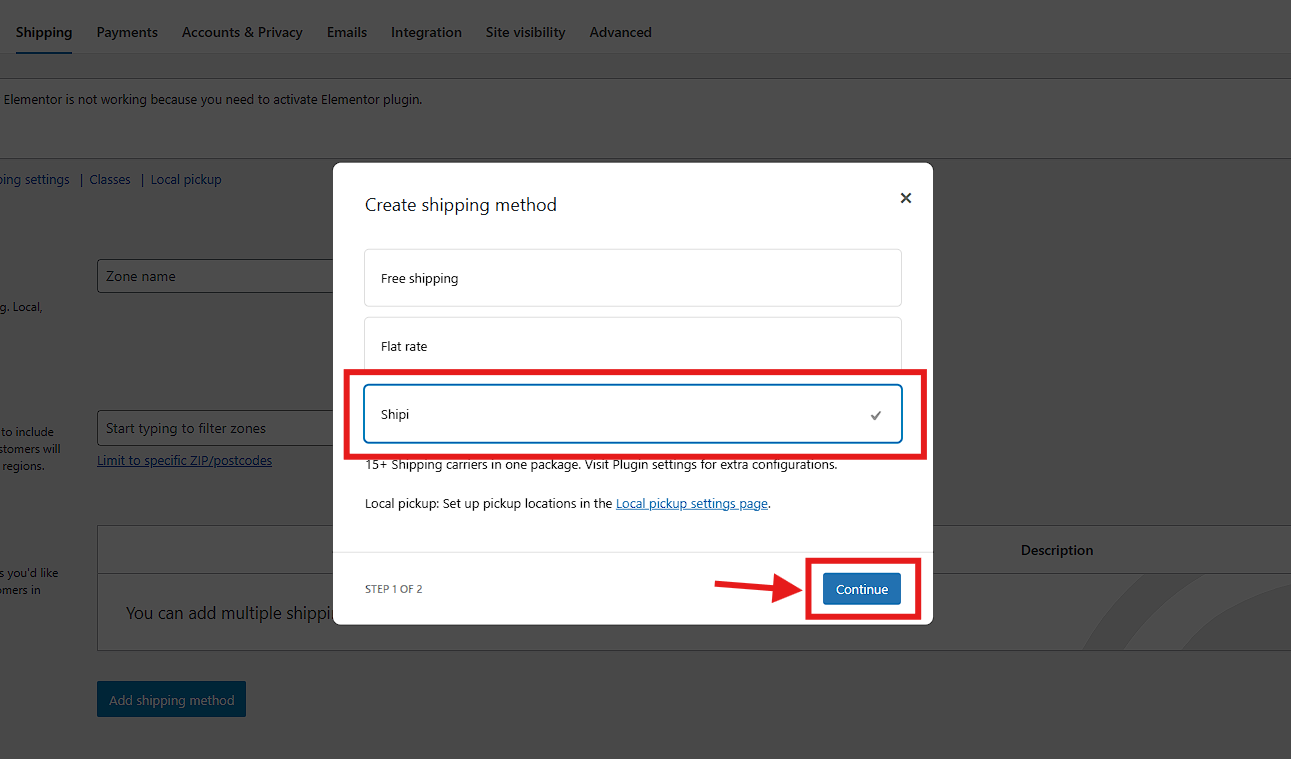
- In the Shipping Zone screen, select Shipi from the dropdown.
- Click Continue to enable real-time carrier rates.
🛒 6. After Successful Configuration, Real-Time Shipping Rates Display in the Cart
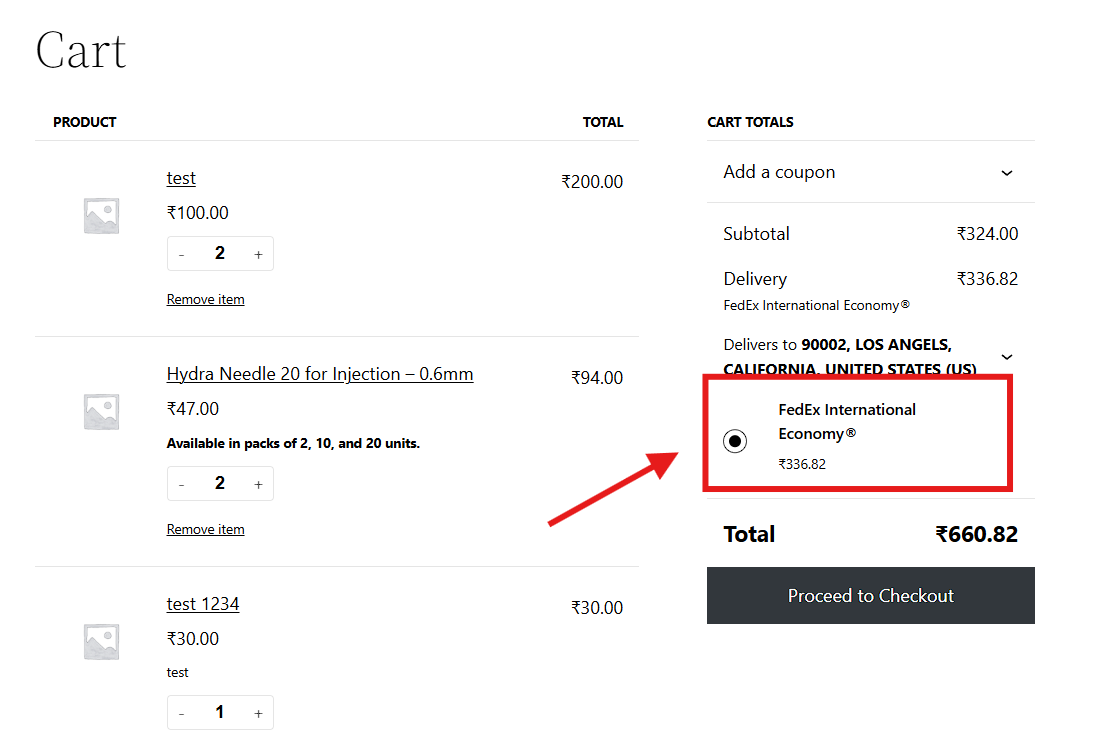
- Customers can now see shipping options like FedEx International Economy® during checkout.
- The shipping rates display here based on the configuration you did in the shipping account configuration page.
- Rates are shown based on Shipi configurations and product details.
📦 7. Generate Shipping Labels from Orders
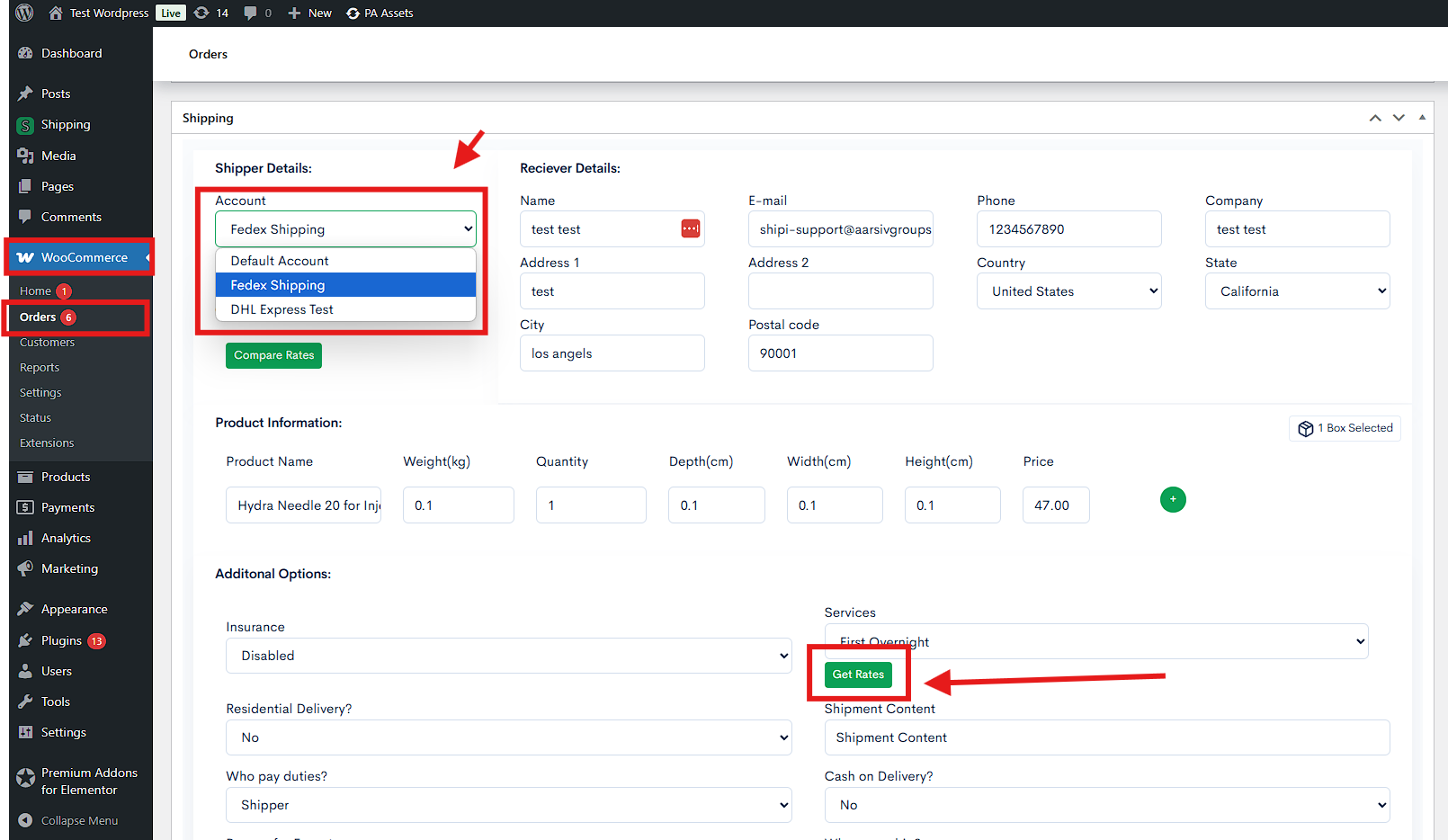
- Go to WooCommerce > Orders.
- Open an order and scroll to Shipping section.
- Choose your shipping account and click Get Rates or Compare Rates.
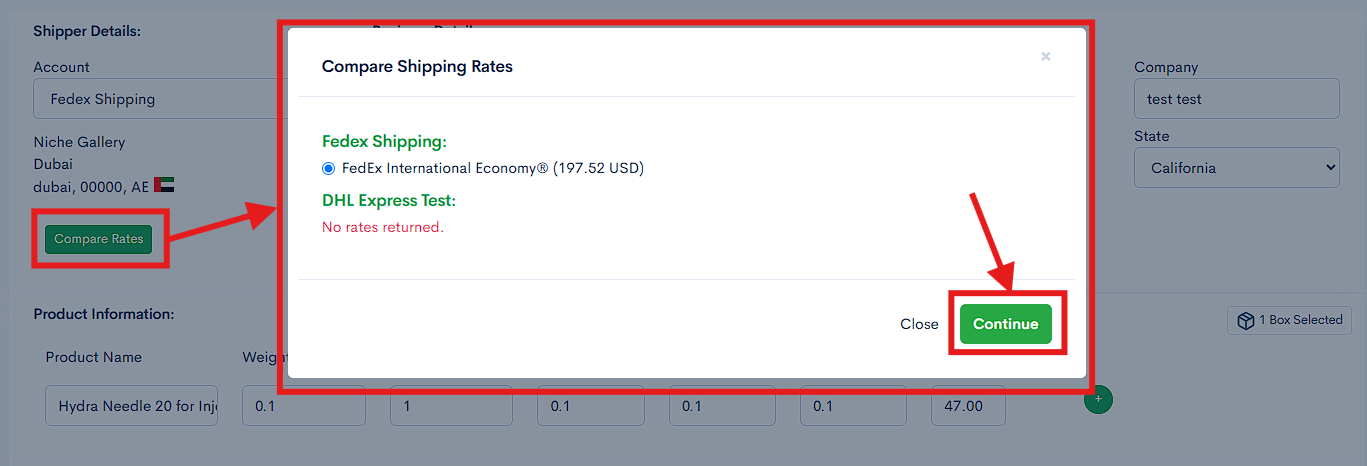
- Once the rate is selected, click Continue to generate the label.
🖨️ 8. Download Shipping Label, Invoice & Packing Slip
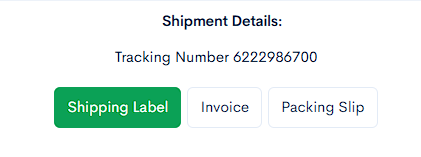
- After the label is generated, download:
- ✅ Shipping Label
- ✅ Invoice
- ✅ Packing Slip
These documents help in fulfilling and dispatching the order smoothly.
✅ Summary
With #Shipi, you can:
- Connect multiple carriers and different location.
- Generate real-time rates
- Print shipping labels instantly
- Handle multi-zone shipping
- Improve shipping efficiency for WooCommerce stores