

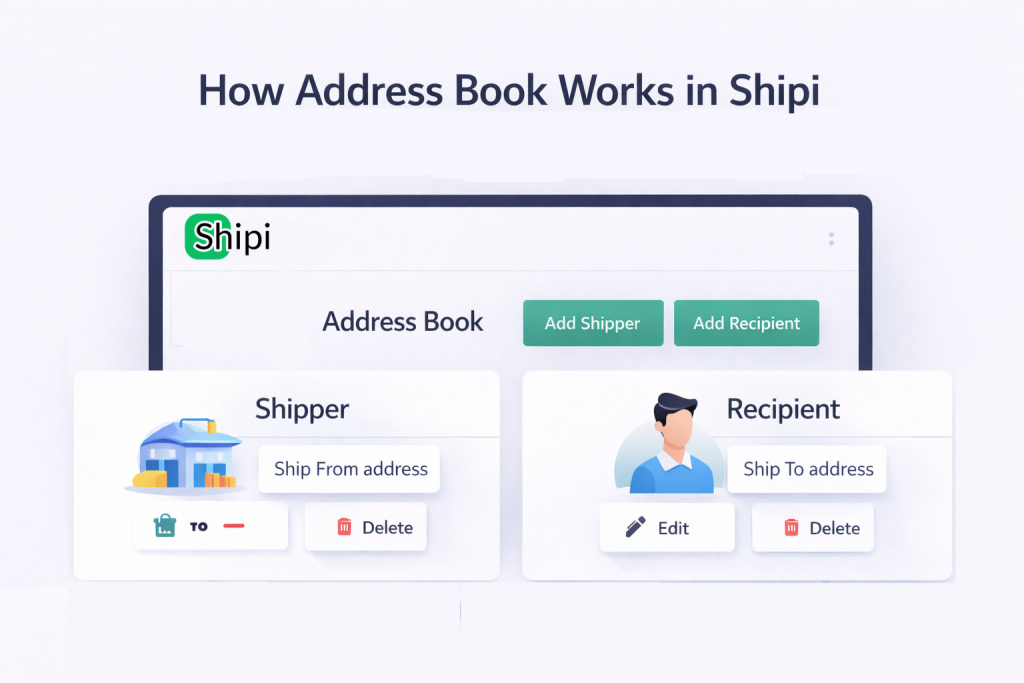
The Address Book in Shipi helps you store, manage, and reuse shipping addresses for both:
- Shippers (Ship-From addresses)
- Recipients (Ship-To addresses)
These addresses are used when:
- Calculating shipping rates
- Generating shipping labels
- Creating pickups
- Syncing orders from eCommerce platforms

Step 1: Access Address Book
- Login to Shipi:
👉 https://app.myshipi.com - From the left menu, click Address Book
You will see:
- Search bar
- Address list
- Filter (All / Shipper / Recipient)
- Two action buttons:
- Add Shipper
- Add Recipient
Step 2: Add Shipper Address

Click Add Shipper to create a Ship-From address.
This address represents:
- Warehouse
- Store
- Fulfillment center
- Pickup location for carriers
Shipper Address Fields Explained
| Field | What It Is | Required | Notes |
|---|---|---|---|
| Name | Contact person name | ✅ | Appears on label |
| Company | Business / warehouse name | ❌ | Recommended |
| Mobile | Pickup contact number | ❌ | Important for couriers |
| Notification email | ❌ | Optional | |
| Address Line 1 | Primary address | ✅ | Mandatory |
| Address Line 2 | Additional address info | ❌ | Optional |
| Country | Pickup country | ✅ | Must match carrier |
| State | Pickup state | ❌ | Required for many countries |
| City | Pickup city | ✅ | Mandatory |
| Postal Code | Area code | ✅ | Very important |
| Tax ID / GSTIN / VAT | Tax identifier | ❌ | Used for customs |
| House Number | Building number | ❌ | Optional |
| Custom Fields | Extra metadata | ❌ | For custom workflows |
📌 Merchant Tip:
You can add multiple shipper addresses if you ship from different locations.
Step 3: Add Recipient Address
Click Add Recipient to create a Ship-To address.
This is usually:
- Customer address
- Business delivery address
- Return destination
Recipient Address Fields
The fields are same as Shipper, but used as delivery destination.
| Field | Usage |
|---|---|
| Name | Customer name |
| Company | Customer company (B2B) |
| Address | Delivery location |
| Contact details | Used by courier |
Step 4: Custom Fields (Advanced)
Shipi allows you to add custom fields in the address form.
| Feature | Explanation |
|---|---|
| Add Custom Field | Add extra metadata |
| Example Uses | Route codes, warehouse IDs, internal tags |
| Best For | Advanced logistics & automation |
📌 Custom fields are useful for custom shipping rules and integrations.
Step 5: Edit & Delete Addresses
Each address supports:
| Action | What It Does |
|---|---|
| ✏️ Edit | Update address details |
| 🗑️ Delete | Remove address permanently |
⚠️ Deleting an address:
- Does NOT affect past shipments
- May impact future label creation if used in rules
How Address Book Is Used in Shipi
📦 Shipping Labels
- Shipper address → Printed as sender
- Recipient address → Printed as receiver
💰 Shipping Rate Calculation
- Rates are calculated from shipper → recipient
- Wrong address = wrong rates
🛒 eCommerce Integration (Automatic)
When you connect:
- Shopify
- WooCommerce
- Other platforms
Shipi will automatically:
- Import customer address
- Save it as a Recipient in Address Book
- Reuse it for future shipments
📌 No manual entry needed for synced orders.
Recommended Best Practices
| Scenario | Recommendation |
|---|---|
| Multiple warehouses | Add multiple shipper addresses |
| B2B shipping | Use company name + tax ID |
| International shipping | Always add postal code & country |
| Automation | Use custom fields |